
The default configuration doesn’t give you the “Run” ribbon in the probe tab. In this example we’ll add it there, but the process is similar for other menu/tab. Here the result.
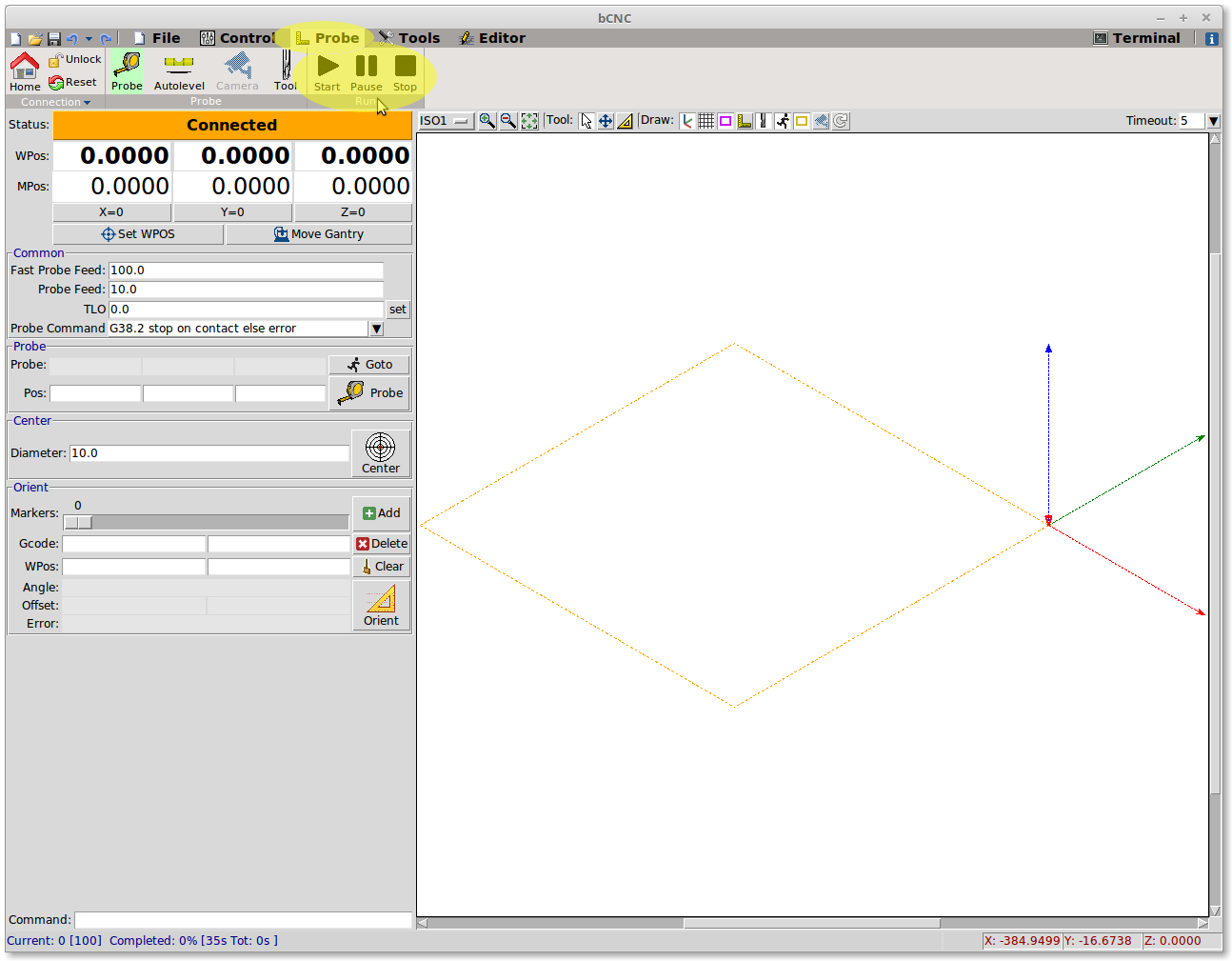
To do this you have to manually change the .bCNC configuration file. At the moment this have to be done with an external editor.
_The file is created in your user directory. It’s NOT the “bCNC.ini” file in the bCNC folder. The exact location of this file depends on you operating system.
For a fast find click in the Tool ribbon and then the configure tab. A user file button will be displayed. Click an then the ./bcn file will be shown.

Here for windows: Hit [Windows key + R] paste %UserProfile% in the Run prompt, then click OK. The user folder will open and there you’ll find the .bCNC file. Right click and choose “open with” then select notepad._
In the file you have to add this line in [bCNC] section:
probe.ribbon = Connection Probe Run
The Run option will add the buttons you want.
Restart to take effect.
本文转载自: https://github.com/vlachoudis/bCNC/wiki/Customize-Menu
![[gnea/grbl-Mega Issue#1] $ command extentions](https://www.grblhal.com/wp-content/themes/gitphp/timthumb.php?src=https://www.grblhal.com/wp-content/themes/gitphp/assets/img/pic/7.jpg&h=110&w=185&q=90&zc=1&ct=1)
![[gnea/grbl-Mega Issue#2] Better interrupt priorities](https://www.grblhal.com/wp-content/themes/gitphp/timthumb.php?src=https://www.grblhal.com/wp-content/themes/gitphp/assets/img/pic/1.jpg&h=110&w=185&q=90&zc=1&ct=1)
![[gnea/grbl-Mega Issue#3] ATMega16U2 virtual com port on ATMega2560](https://www.grblhal.com/wp-content/themes/gitphp/timthumb.php?src=https://www.grblhal.com/wp-content/themes/gitphp/assets/img/pic/4.jpg&h=110&w=185&q=90&zc=1&ct=1)
![[gnea/grbl-Mega Issue#4] Real-time adjustable feedrates](https://www.grblhal.com/wp-content/themes/gitphp/timthumb.php?src=https://www.grblhal.com/wp-content/themes/gitphp/assets/img/pic/8.jpg&h=110&w=185&q=90&zc=1&ct=1)